Thursday, July 14, 2011

Speaking at SharePoint Saturday The Conference on Aug 13 2011

I will be speaking at SharePoint Saturday The Conference on Aug 13 2011

Topic: 

Leverage Search and Customize to your Brand within SharePoint 2010

Details:

The enterprise search capabilities built in to SharePoint 2010 provide an easy win for organizations seeking to achieve a quick return on their SharePoint investment. This technical deep dive will include a discussion of search configuration best practices, strategies for maximizing SharePoint's capabilities, and simple customizations that can take your search experience to the next level.

Location:

Nothern Virginia Community College http://www.spstc.org/Pages/About.aspx

Link: 

http://www.spstc.org/SitePages/Sessions.aspx?SessionID=28

Sunday, July 10, 2011

SharePoint 2010 - Search Error - The search service is not able to connect to the machine that hosts the administration component

Problem:


We recently ran across an issue that prevented the SharePoint Server 2010 from starting with the below exception:

"The search service is not able to connect to the machine that hosts the administration component"


When I clicked on any link in the left navigation in search administration interface inside Central Administration, I was greeted with the below exception:


The application pool in IIS that the search service uses is found in stopped state. It stops automatically as soon as it is started.


Explanation:

After hours of research, we have found that it was all happening due to an AD policy set in domain controller that was not allowing certain service accounts from being able to start services and application pools

Here are the steps we followed to fix this issue:

  • First we did a complete rebuild including the OS
  • Then the search service worked but a service account was not able to start search service and the Web Services Default App Pool.. (sp2010sa account in our case)
  • We then updated the group policies in AD to allow the service accounts to have "logon as a batch" job rights
  • We had a problem in pushing the group policy to client(s). For that change to take place in the servers in the domain, we had to take the servers out of the domain and re add them..
  • So we removed computer(s) from domain, computer account was not created in the correct Organizational Unit(OU). New policy was forced as an update on the computer. So we removed the computer from the domain and rejoined to the domain..
  • In this process SharePoint Config DB got corrupted and so CA was gone
  • So we uninstalled SP 2010 again, removed all the SP databases and re-installed SP 2010

Summary:

In short, before installing SharePoint, make sure that you follow the least privileged approach and create all required service accounts. This article here  describes it very well.

Make sure that the managed accounts used such as SharePoint Search, SharePoint App Pool and the SharePoint Farm Account have "logon as a batch" job rights.

Server(s) can be removed from domain but computer accounts should not be removed. If computer account(s) are removed, the identifier(s) will be deleted and therefore the identifiers change the next time when the servers are added again to the domain controller. SharePoint looks for the identifiers in config database and since it could not find the correct identifiers, CA would not work.

If you have to apply new policy such as "logon as a service", make sure to place the computer(s) in correct Organizational Unit(OU) and remove the computer(s) from domain. The policy is then reset and it assigns the correct "logon as a service" credentials.

This wont be the case in most installations.
In our case, we ran into issues due to incorrect / corrupt AD structure / domain controller.

I am not a network specialist but if there is a way to ensure that all the AD group policies are being applied properly prior to installing SharePoint, you would save yourself from the above mentioned hassles.

Wednesday, June 8, 2011

SharePoint 2010 - Issues with Styles and Markup Styles drop downs in Rich Text Editor. Access is denied / 'undefined' is null or not an object - sp.ui.rte.js


Problem:

In the Rich Text Editor (CEWP / Page Content Area), when a user clicks on Markup Styles or Styles, the popups do not show up. A JS error shows up. (Access is denied / 'undefined' is null or not an object - sp.ui.rte.js)

Click inside a Rich Text Editor (CEWP or Page Content Field)


Click on Styles / Markup Styles


You will notice that the status bar reports a JS error.


Clicking on the error in status bar brings the below dialog:


Explanation:

I initially thought that the jQuery registration call or addThis script might be causing the issues and therefore tried removing jQuery references from Google and replaced them with local references, removed "Add This" widget, etc..

Finally it turned out to be that there are some empty CSS/JavaScript files in the master page that are causing the js error.

Resolution:

Make sure that there are no empty css files that are included in the master page.
Just add a comment like /* Styles */ in the CSS file
Check-In/Publish the CSS file and the error should disappear.

Tuesday, May 31, 2011

SharePoint - Server error: The URL is invalid, it may refer to a nonexistent file or folder or refer to a valid file that is not in the current Web


Scenario:


SharePoint Designer throws the error "Server error: The URL is invalid, it may refer to a nonexistent file or folder or refer to a valid file that is not in the current Web" when you attempt to open/check-in/check-out/upload a file.

Explanation:

While there could be many reasons for this misleading error to show up, one of the reason is low disk space in the database server.

I noticed that the transaction log file for the SharePoint_Config database, "SharePoint_Config_Log.LDF" (resides in \Program Files\Microsoft SQL Server\MSSQL.1\MSSQL\Data in our case) has grown enormously to 28 GB which is approximately 70% of the space in that drive.

Solution:

Take a backup of the log file it required.
Just run the below scripts to truncate the log file:

SQL Server 2008:

USE [master]
GO
ALTER DATABASE[SharePoint_Config] SET RECOVERY SIMPLE WITH NO_WAIT
GO
USE [SharePoint_Config]
GO
DBCC SHRINKFILE ('SharePoint_Config_Log')
GO
ALTER DATABASE[SharePoint_Config] SET RECOVERY FULL WITH NO_WAIT
GO
USE [SharePoint_Config]
GO

SQL Server 2005:

BACKUP LOG [Sharepoint_Config] WITH TRUNCATE_ONLY
USE [SharePoint_Config]
GO
DBCC SHRINKFILE (N’SharePoint_Config_log’ , 50)
GO

The file "SharePoint_Config_Log.LDF" is now 504 KB.
The server is happy now and running fine.


Friday, May 27, 2011

SharePoint 2010 - Buggy SPSecurityTrimmedControl and a workaround

Scenario:


The SPSecurityTrimmedControl control in SharePoint is incomplete and buggy.
Information about the bugs in this control are not provided by MSDN either.

In this post, I will try to explain the bug in the SPSecurityTrimmedControl and a solution to get over it.

Explanation:


The SPSecurityTrimmedControl  allows us to display/hide the content using a few different criteria, like authentication (for anonymous/authenticated users only), page mode (page in display or edit mode) or current user’s permissions.

So what's wrong?


The control doesn’t work the way you would expect it.
It does a good job with displaying content based on permissions but fails to conditionally display content based on authentication(anonymous/authenticated users).

That means using this control, you can hide an element from users who do not have the appropriate permissions.
Srini Sistla has a good post explaining all the available permissions here

This control also has the so called ability to show/hide content based on authentication(anonymous/authenticated users).

You would need to use the property "AuthenticationRestrictions" which can take any of these values:


  • AllUsers
  • AuthenticatedUsersOnly
  • AnonymousUsersOnly


For Ex:

<SharePoint:SPSecurityTrimmedControl runat="server" id="stc" AuthenticationRestrictions="AnonymousUsersOnly"> <p>User is not logged in</p></SharePoint:SPSecurityTrimmedControl>

In case if you try to use this control in the above manner, it wont give you the desired results.

Examine the below screenshots and you understand it better.

Test 1: Tried with "AnonymousUsersOnly"


I tried to access the page as an anonymous user and below is the output. So test failed


Test 2: Tried with "AuthenticatedUsersOnly"


I tried to access the page as an authenticated user and below is the output. So test passed


Solution:


The solution is to use the LoginView control if you need to show/hide content based on authentication.
The LoginView control provides the following templats:

  • AnonymousTemplate - Controls to show to anonymous users only
  • LoggedInTemplate - Controls to show to authenticated users only

Test 3: Tried both AnonymousTemplate & LoggedInTemplate

I tried to access the page as an authenticated user and below is the output. Test passed
I tried to access the page as an anonymous user and below is the output. So test passed


Sunday, May 22, 2011

SharePoint 2010 - Access denied for users that have full control on the site

Scenario:
  • Users get "Access Denied" over the whole site, despite having Full Control permission
  • Site Collection Administrators have no problem logging in
Explanation:

A SharePoint 2010 site that uses claims-based authentication has been extended to Intranet zone that uses AD as well as FBA. The site has number of users in the default owners and members groups.

All the site users always get access denied over the whole site even though they clearly have access to the site through the site groups.

Site Collection Administrators are allowed to access the site and have no problems logging in.

Resolution:


Make sure that all the Master page, CSS files, any other files that are required are published.
If there are files that are required in the master pages and are not published, users will get access denied even if they have full control on the site.

If you are ok with giving all authenticated users atleast road-only access to all files inorder to prevent the access denied problem, then you can try the below.

Add a new "User Policy" for the web application that allows "All Authenticated Users" the permissions "Full Read" on the desired zone.

To add a new User Policy:


Go to Central Administration
Click on Application Management
Click on Manage Web Applications

Choose the desired web application:


Click on "User Policy"


Click on "Add Users" to add a new User Policy:


Select the zone that you want to apply the new policy to. If you are not sure what to choose, leave the defaut value selected (All Zones) and cick next


Choose the permissions that you would like to give to the user(s) in this new user policy. If you do not want to give the user(s) full permission, choose "Full Read". This permission ensures that all the users in this policy can atleast access the site. Then click on "Browse" icon in the "Choose Users" area.


If you would ike to give All Authenticated Users / AD users / FBA users "Full Read" access, then choose the appropriate group(s).
In the next screens, click OK to get out of the wizard.
Your new user policy should be ready now.

Tuesday, May 17, 2011

Sharepoint 2010 - An exception occurred when trying to issue security token: The server was unable to process the request due to an internal error

Scenario:

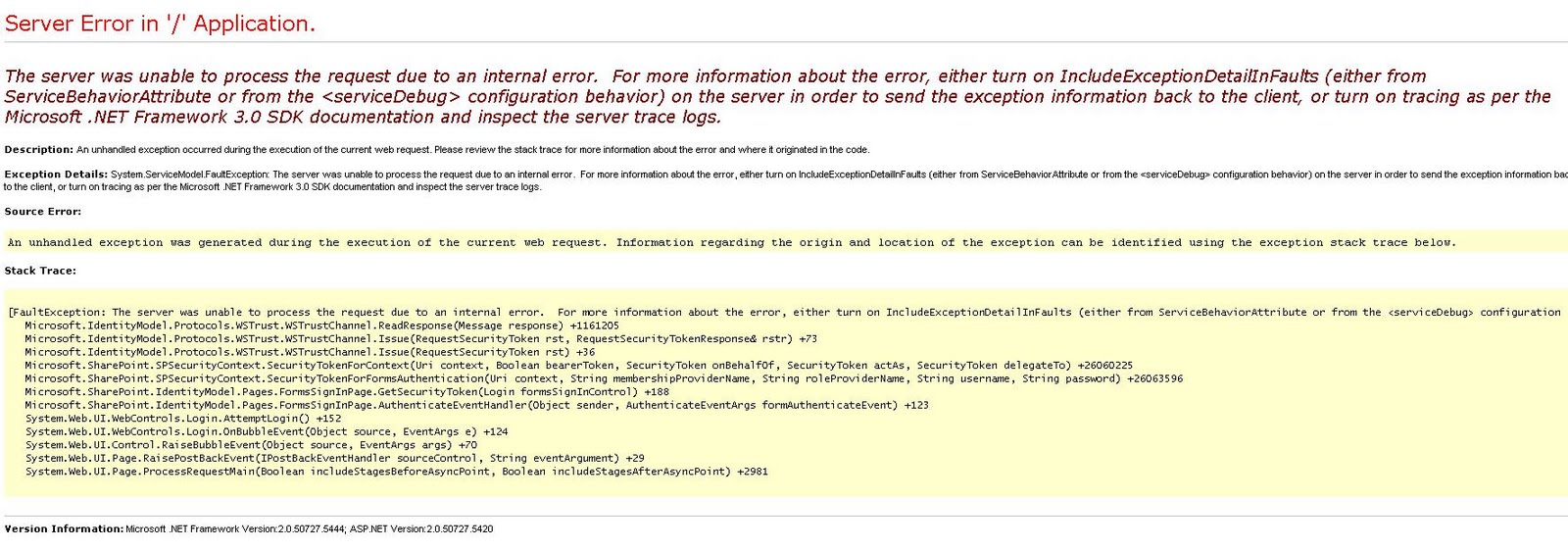
You receive the below exception when you try to logon to a site that has been configured to use Claims Based Authentication with a custom membership provider using FBA credentials:

Event ID from Event Log  - 8306

An exception occurred when trying to issue security token: The server was unable to process the request due to an internal error.  For more information about the error, either turn on IncludeExceptionDetailInFaults (either from ServiceBehaviorAttribute or from the <serviceDebug> configuration behavior) on the server in order to send the exception information back to the client, or turn on tracing as per the Microsoft .NET Framework 3.0 SDK documentation and inspect the server trace logs..

Explanation:

This error started to appear in our QA environment which does not have Visual Studio installed. I have tried starting the service "Claims to Windows Token Service" but that did not help either.

I have made sure that all configuration changes required for FBA have been made properly in the below web.config files:
  • Web Applications
  • CA Web Aplication
  • \14\WebServices\SecurityToken
This post can get you started with building a custom membership provider and making changes to the required configuration files.


Resolution:

To view more information about the actual error that is preventing the secure token service from being able to issue security token, I added the service debug in the web.config for the web service, under \14\WebServices\SecurityToken:
<serviceDebug includeExceptionDetailInFaults="True" httpHelpPageEnabled="True"/>
After adding the above to SecurityToken's web.config, the event log reported the below:


An exception occurred when trying to issue security token: The configuration section for Logging cannot be found in the configuration source..

I then realized that it is Microsoft.Practices.EnterpriseLibrary.Logging from my custom membership code that is causing the issues and not FBA configuration as I originally thought.

I then went ahead and added the required configuration for Microsoft.Practices.EnterpriseLibrary.Logging

Everything after that worked as desired. 

So I strongly advice everyone not to panic and take such drastic steps as re-installing SharePoint 2010 etc..
When I googled for this error, many people suggested to reinstall SharePoint 2010, change server names, etc..

Remember that these things happen for a reason. It just requires some patience to figure out the exact problem.